 Doculven
Converting HEIC photos on Windows, and why they will not open
iPhone photos are HEIC. Windows often cannot open them. Here is what the format is, why the conversion is necessary, and what changes when you convert.

You copied photos from an iPhone to a Windows PC, double-clicked one, and Windows said it could not open the file. The extension is .heic. Nothing is corrupted. Windows simply lacks the codec by default in many configurations.
Convert an iPhone HEIC to JPG on Windows and check the result
To try the workflow before copying photos from your phone, save the sample HEIC file. In the image converter, choose HEIC, select the file and convert it to JPG. Open the downloaded JPG in Windows and compare its dimensions with the preview.

Our Windows Chromium test decoded the primary image in this 8-bit sRGB file and produced a 1600 × 1200 JPEG weighing 243,248 bytes. You can open the actual JPEG output for comparison. The test checked the JPEG signature, decoded the downloaded file and verified both dimensions. The JPG was larger than the 183,061-byte HEIC, which matters if you are converting for an upload limit.
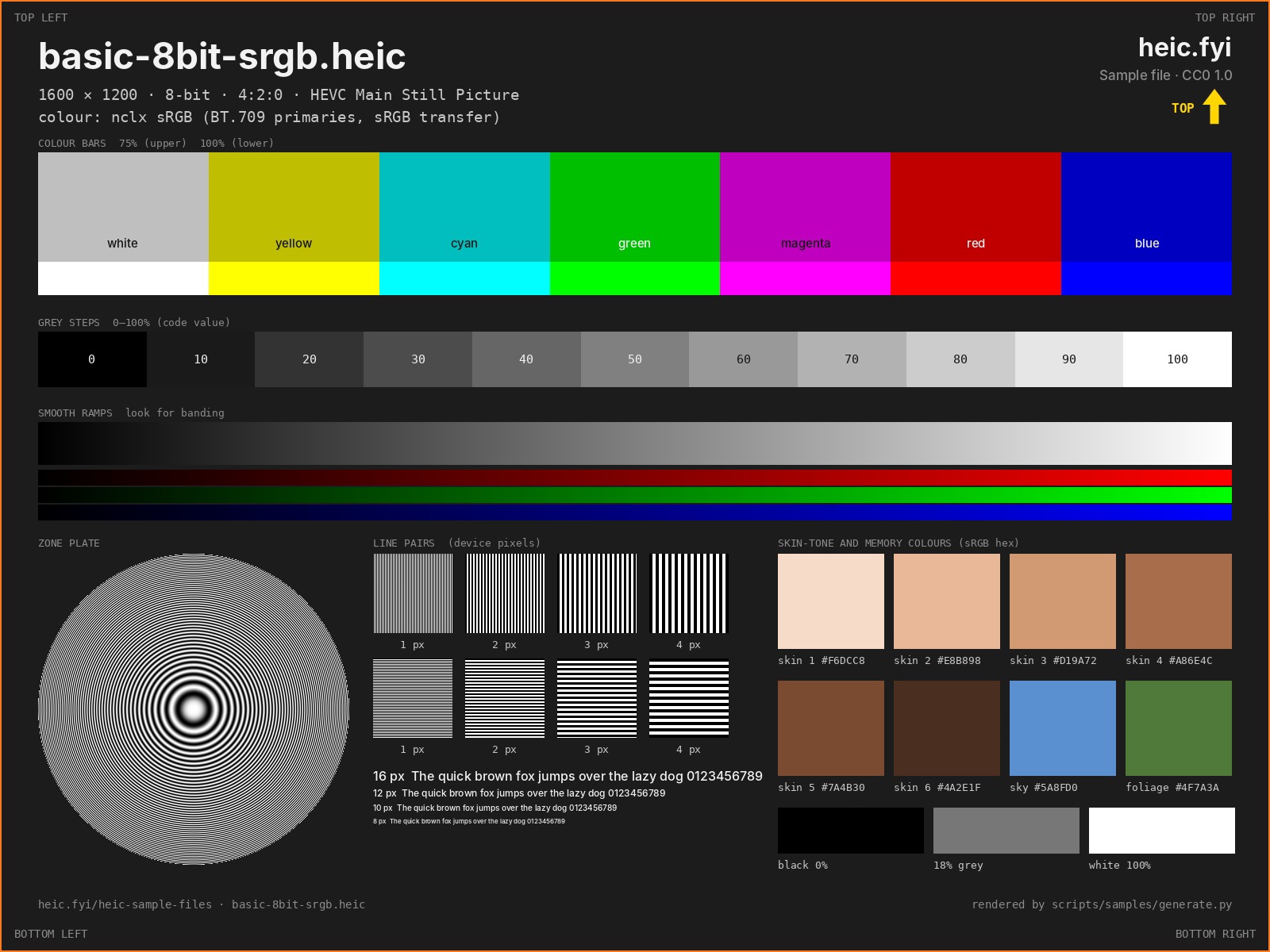
The input is a CC0 test image from heic.fyi. This result covers a single SDR image. For an iPhone Live Photo, keep the original assets if you need motion or audio. For an HDR photo, inspect bright highlights on the screen where you intend to share it.
What HEIC actually is
HEIC stands for High Efficiency Image Container. It is based on HEIF and uses HEVC (H.265) compression. In plain terms: it is the same family of technology as H.265 video, applied to still images.
Its purpose is efficiency. Apple switched to HEIC because it stores a photo at roughly half the size of an equivalent-quality JPEG. On a phone with limited storage, that matters a lot.
HEIC is also a container, not a single format. One .heic file can hold:
- the primary still image,
- a sequence of frames (Live Photos),
- depth data used for portrait mode effects,
- auxiliary images,
- metadata.
This is why converting is not always a clean one-to-one operation. A converter has to decide what to take.
Why Windows struggles
JPEG support is built into Windows. HEIC requires a separate codec, which Microsoft distributes as a paid extension through the Store in some versions and preinstalls in others. The result is inconsistent behaviour: the same file opens on one machine and not another.
Browsers are similar. Safari handles HEIC on Apple platforms. Chrome and Firefox generally do not, which is why a HEIC photo attached to a web form often fails to preview.
What conversion changes
Converting HEIC to JPEG:
- Keeps the primary image, its pixel dimensions, and basic visual content.
- Keeps the orientation, if the converter applies the rotation correctly.
- Drops the Live Photo sequence — you get one still.
- Drops depth data, so portrait-mode background blur becomes a flat image with the blur already baked in.
- Drops most metadata, depending on the converter.
- Removes the HDR headroom in most cases; a converted file may look slightly flatter than the original on an HDR display.
That last point surprises people. If a photo looks vivid on the iPhone and dull after conversion, it is usually because the display was showing extended dynamic range that JPEG cannot carry.
Choosing the output format
If you need maximum compatibility — email, office documents, upload portals — use JPEG. Quality around 90–92 is visually indistinguishable from the source for photographs.
If the image has transparency (unlikely from a camera, possible from an edited export), use PNG or WebP.
If file size matters and the destination is a modern browser, WebP gives better compression than JPEG.
A workflow that preserves the original
- Copy, do not move the HEIC files off the phone. Keep the originals.
- Convert in bulk rather than one at a time; the cost is the same and the bookkeeping is easier.
- Check orientation on a sample before converting a whole folder. A rotation bug is much cheaper to catch early.
- Verify one file opens in the target application before relying on the batch.
- Store the converted JPEGs in a separate folder so you never confuse them with originals.
Why local conversion matters here
Conversion can be done entirely in the browser, and Doculven does it that way. The HEIC decoder runs on your device; the photo is never uploaded.
That is not only a privacy preference. Photos of documents, ID cards, and family members are exactly the files people should not hand to an anonymous website. A local conversion keeps the bytes on your machine, and the only network traffic is loading the decoder itself.
When conversion is not enough
If a photo will not convert, it is usually one of three things:
- The file is not really HEIC. Some apps rename JPEG files to
.heic. The header will reveal this. - The file is damaged or partially copied. Copying from a phone interrupted mid-transfer produces exactly this.
- The file uses a variant the decoder does not support. Encrypted HEIC, or unusual auxiliary-image configurations.
A clear error message is more useful than a silent failure, which is why the tool distinguishes “could not read” from “converted successfully”.